The flagship Planet Ruler experience - accessible science with everyday tools.
This tutorial shows you how to measure Earth’s radius using nothing but your smartphone camera from an airplane window. It’s the perfect introduction to practical astronomy and demonstrates why Planet Ruler exists: to make planetary science accessible to everyone.
Prerequisites
A smartphone or camera with EXIF data
A window seat on a commercial flight
Basic knowledge of your flight altitude
30 minutes during flight + 15 minutes for analysis
Note
Perfect for: Students, teachers, curious travelers, anyone with a window seat and a sense of wonder! No special equipment needed.
The Science: Why This Works
From the ground, Earth’s horizon appears flat. But climb to 35,000 feet in an airplane, and you’ll see the horizon curve. This isn’t an optical illusion - you’re seeing Earth’s actual roundness.
The higher you go, the more curvature becomes visible. By measuring how much the horizon curves in your photo and knowing your altitude, you can reverse-engineer Earth’s radius.
Historical Context: Ancient Greek scientist Eratosthenes measured Earth’s circumference using a stick and the sun around 240 BCE. You’re doing something conceptually similar, but with modern tools that fit in your pocket!
Part 1: Taking Your Photo
Best Timing
When to photograph:
Altitude: 25,000 - 40,000 feet (typical commercial cruise altitude)
Timing: After reaching cruising altitude (~30-40 minutes into flight)
Weather: Clear day with visible horizon
Position: Window seat, preferably away from wing
What makes a good photo:
What to avoid:
Photography Tips
Step-by-step:

1. Wait for cruising altitude (seatbelt sign off)
2. Position yourself close to window, sitting upright
3. Keep phone/camera level (don't tilt up or down)
4. Turn OFF flash
5. Focus on the horizon line
6. Take 5-10 photos (increases your chances of a good one)
7. Note the time for altitude lookup later
Tip
Camera settings (if adjustable):
Use HDR mode if available
Capture at highest resolution
Turn off digital zoom
Let auto-exposure handle brightness
Part 3: Finding Your Altitude
You need to know your altitude when you took the photo. Here are four methods, from most to least accurate:
Method 1: FlightRadar24 (Recommended)
Real-time tracking:
1. Open FlightRadar24 app (free version works)
2. Search for your flight number
3. Note altitude when you took photos
4. Screenshot for reference
Post-flight lookup:
1. Visit flightradar24.com
2. Search your flight number and date
3. Use playback feature to find your photo timestamp
4. Read the altitude at that moment

Example: "AA1234 on Nov 4 at 14:23 UTC: 35,000 feet"
Method 2: In-Flight Display
Many aircraft show altitude on seatback screens or overhead displays.
1. Take photo of altitude display when you photograph horizon
2. Note the altitude in feet
3. Convert to meters: altitude_m = altitude_ft × 0.3048

Example: 35,000 feet = 10,668 meters
Method 3: Ask the Flight Crew
Flight attendants usually know the cruising altitude:
Polite question: "Hi! I'm doing a science project measuring Earth's
curvature. Could you tell me our cruising altitude today?"

Typical answer: "We're at 37,000 feet today."
Method 4: Estimate from Flight Type
If you can’t get exact altitude, use these typical values:
Flight Type |
Altitude (feet) |
Altitude (meters) |
|---|---|---|
Domestic short-haul |
30,000 - 35,000 |
9,144 - 10,668 |
Domestic long-haul |
35,000 - 39,000 |
10,668 - 11,887 |
International |
37,000 - 41,000 |
11,278 - 12,497 |
Warning
Altitude uncertainty of ±2,000 feet typically adds 5-10% error to your final radius measurement. Try to be as accurate as possible, but don’t worry if you can only estimate.
Part 4: Analysis with Planet Ruler
Now for the fun part - let’s measure Earth’s radius!
Zero-Config Workflow
Planet Ruler’s auto-config feature extracts camera parameters from your photo’s EXIF data:
import planet_ruler as pr
from planet_ruler.camera import create_config_from_image
from planet_ruler.uncertainty import calculate_parameter_uncertainty
from planet_ruler.fit import format_parameter_result

# Your airplane photo and altitude
photo_path = "airplane_horizon.jpg"  # Your actual photo filename
altitude_meters = 10668  # 35,000 feet = 10,668 meters

# Auto-detect camera from EXIF data
config = create_config_from_image(
    image_path=photo_path,
    altitude_m=altitude_meters,
    planet="earth",
    limits_preset="balanced",  # "tight", "balanced" (default), or "loose"
)

# See what was detected
print("Auto-detected camera:")
camera_info = config["camera_info"]
print(f"  Model: {camera_info.get('camera_model', 'Unknown')}")
f_mm = config["init_parameter_values"]["f"] * 1000
w_mm = config["init_parameter_values"]["w"] * 1000
print(f"  Focal length: {f_mm:.1f} mm")
print(f"  Sensor width: {w_mm:.1f} mm")

# Create observation
obs = pr.LimbObservation(photo_path, config)
Image Cropping (Optional)
Sometimes obstructions are unavoidable. If you end up with a photo that contains a window frame, airplane wing, or other object that either obscures the horizon directly or could confuse the fit, cropping is a great option. To get started, simply run the crop_image method. You’ll get a pop-up GUI containing your image where you can drag a rectangle that will contain the area you want to keep. Try to get as much of the horizon as you can while avoiding whatever is obscuring it.
obs.crop_image()
GUI controls
Crop Tool Controls:
Click & Drag     Select crop region
Scroll Wheel     Zoom in/out
+/- Keys         Zoom in/out
Esc              Clear selection

Buttons:
Crop & Save      Apply crop and save to disk
Crop (No Save)   Crop in-memory only
Clear Selection  Remove crop region
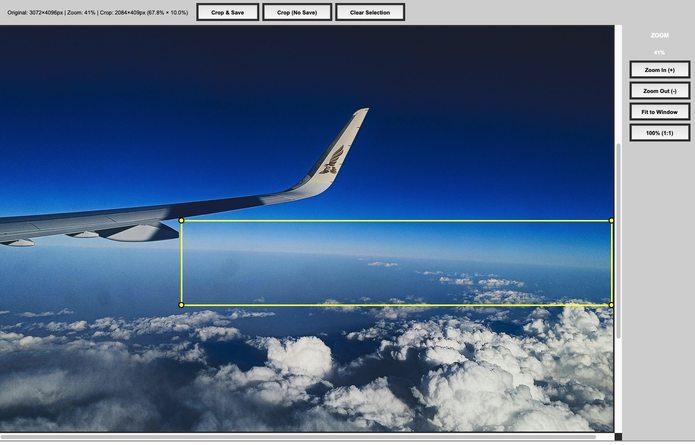
Drag the crop rectangle to select a region without obstuctions.
Note
Cropping the image implicitly changes the camera parameters (field of view, for one). Planet-ruler compensates for this by automatically re-scaling those parameters appropriately after you crop.
Horizon Detection
Use manual annotation for precise, user-controlled detection.
obs.detect_limb(detection_method="manual")
GUI controls
Crop Tool Controls:
Left Click        Place horizon point
Right Click       Remove previous point
Scroll Wheel      Zoom in/out
+/- Keys          Zoom in/out

Zoom Buttons:
Generate Target   Save points to memory (ok to close window after)
Save Points       Save points to disk for usage later
Load Points       Load a previous set of points
Clear all         Remove all points
Zoom In/Out       Zoom in/out
Fit to Window     Zoom to fit image vertically
100% (1:1)        Zoom to full resolution

Vertical Stretch Buttons:
Increase          Stretch image vertically (increases apparent curvature)
Decrease          Relax image vertically (decreases apparent curvature)
Reset (1x)        Restore original vertical ratio
Tip
Clicking strategy: Click 10-15 points spread evenly across the horizon. More points near areas of high curvature, fewer where horizon is straighter. Don’t be shy with the vertical stretch button – this makes it dramatically easier to see the curve and place points accurately.
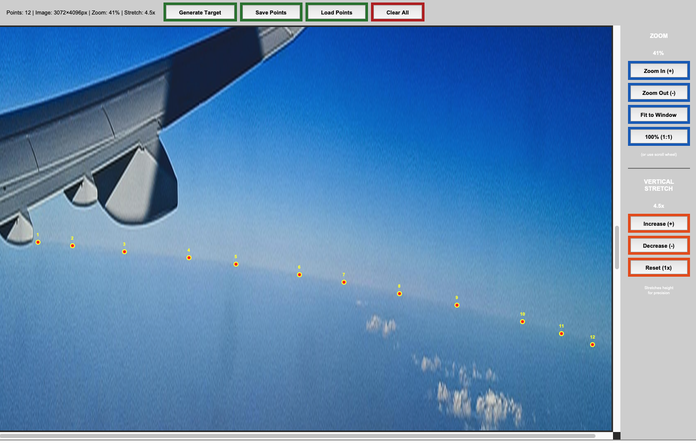
Annotating using a 4.5x vertical stretch.
Parameter Fitting
Now fit the planetary radius to match your detected horizon:
# Fit Earth's radius
print("\nFitting planetary parameters...")
obs.fit_arc(
    minimizer='differential-evolution',
    max_iter=1000,
    seed=42
)

print("✓ Fit completed!")
Results and Uncertainty
Extract your measurement with uncertainty quantification:
# Calculate radius with uncertainty
radius_result = calculate_parameter_uncertainty(
    obs, "r",
    scale_factor=1000,  # Convert meters to kilometers
    method='auto',
    confidence_level=0.68  # 1-sigma (68%)
)

# Display results
print("\n" + "="*50)
print("YOUR MEASUREMENT OF EARTH'S RADIUS")
print("="*50)
print(format_parameter_result(radius_result, "km"))

# Compare to known value
known_earth_radius = 6371.0  # km
error = abs(radius_result['value'] - known_earth_radius)
percent_error = 100 * error / known_earth_radius

print(f"\nKnown Earth radius: {known_earth_radius:.0f} km")
print(f"Your error: {error:.1f} km ({percent_error:.1f}%)")

if percent_error < 15:
    print("🎉 Excellent measurement!")
elif percent_error < 25:
    print("👍 Good measurement!")
else:
    print("📊 Try another photo for better accuracy")
Expected Output
Auto-detected camera:
  Apple iPhone 14 Pro
  Focal length: 24.0 mm
  Sensor width: 9.8 mm
  Field of view: 75.6°

Click points along the horizon curve...
✓ 22 points selected

Fitting planetary parameters...
✓ Fit completed!

==================================================
YOUR MEASUREMENT OF EARTH'S RADIUS
==================================================
r = 6234 ± 156 km

Known Earth radius: 6371 km
Your error: 137 km (2.2%)
🎉 Excellent measurement!
Part 5: Understanding Your Results
What to Expect
Typical Results:
Measured radius: 5,500 - 7,200 km
True Earth radius: 6,371 km
Typical error: 10-25%
Note
Even with 10-25% error, you’ve measured something the size of a planet using just your phone! That’s remarkable. Professional measurements use satellites and achieve centimeter precision, but your result is scientifically meaningful.
Sources of Error
Understanding why your measurement isn’t exactly 6,371 km:
1. Altitude Uncertainty (±5-10% effect)
In-flight displays are approximate
Barometric altitude vs. GPS altitude differ
Your location along the flight path varies
2. Camera Parameters (±5-10% effect)
EXIF focal length is approximate
Lens distortion (especially wide-angle phones)
Sensor size database contains estimates
Field-of-view calculation assumptions
3. Horizon Detection (±3-8% effect)
Manual clicking precision (±50-200 pixels)
Atmospheric haze obscures true horizon
Window clarity and cleanliness
Your hand stability when photographing
4. Atmospheric Refraction (±1-3% effect)
Light bends through atmosphere
Makes horizon appear slightly lower than geometric position
Not modeled in basic analysis
5. Earth’s Shape (±0-2% effect)
Earth is oblate (squashed): equatorial radius 6,378 km, polar radius 6,357 km
We assume a perfect sphere with mean radius 6,371 km
Your location matters slightly
Tip
The key insight: Despite these errors, you successfully measured a planetary-scale object! Understanding error sources is as educational as getting the “right” answer.
Improving Your Accuracy
Want better results? Try these techniques:
Multiple Measurements
# Analyze 3-5 photos from same flight
photos = ["photo1.jpg", "photo2.jpg", "photo3.jpg"]
results = []

for photo in photos:
    config = create_config_from_image(photo, altitude_m=10668, planet="earth")
    obs = pr.LimbObservation(photo, config)
    obs.detect_limb(detection_method="manual")
    obs.smooth_limb()
    obs.fit_arc(max_iter=1000)

    radius_result = calculate_parameter_uncertainty(
        obs, "r", scale_factor=1000, method='auto'
    )
    results.append(radius_result['value'])

# Average reduces random error
import numpy as np
print(f"Mean radius: {np.mean(results):.1f} km")
print(f"Std deviation: {np.std(results):.1f} km")
Better Altitude Data
GPS logger apps (more accurate than barometric)
Post-flight FlightRadar24 playback (most accurate)
Average altitude over 5-minute window
Optimal Photography
Clear day, minimal clouds
Clean windows (wipe if possible!)
Multiple exposures to ensure good quality
Steady hand or brace against window frame
Automated Detection
For more consistent results across multiple photos:
# Gradient-field optimization (no manual clicking, no detect_limb needed)
obs.fit_gradient(
    resolution_stages='auto',
    max_iter=800
)
Part 6: Educational Extensions
Class Projects
Individual Project:
Each student takes photos on a flight
Analyze individually with Planet Ruler
Compare results in class
Discuss error sources
Group Data Collection:
Pool results from entire class
Plot altitude vs. measurement accuracy
Identify patterns (time of day, location, weather)
Statistical analysis of combined data
Discussion Questions
Measurement Comparison
Who achieved the highest accuracy?
What made their photo better?
How did altitude affect results?
Error Analysis
Which error source was largest for your measurement?
How could we reduce each type of error?
What would professional scientists do differently?
Historical Context
How did Eratosthenes measure Earth 2,300 years ago?
How accurate was his measurement?
Why couldn’t ancient scientists use this airplane method?
Planetary Perspective
What does your measurement tell you about Earth’s size?
How does horizon curvature change with altitude?
Could you measure Mars this way if you were there?
Advanced Challenges
Challenge 1: Altitude vs. Accuracy
Hypothesis: Higher altitude gives more accurate measurements
1. Collect photos from flights at different altitudes
2. Process all with Planet Ruler
3. Plot: Altitude (x) vs. Measurement Error (y)
4. Is there a relationship?
Challenge 2: Earth’s Oblateness
Question: Can you detect that Earth is oblate (flattened at poles)?
1. Compare flights near equator (radius ~6,378 km)
   vs. near poles (radius ~6,357 km)
2. Does your measurement reflect this 21 km difference?
3. How much precision would you need?
Challenge 3: Weather Balloon
Extension: Measure from a weather balloon
1. Weather balloons reach ~100,000 feet
2. Much more curvature visible
3. Could achieve <5% accuracy
4. Great science fair project!
Part 7: Troubleshooting
Common Issues
“The detection isn’t finding my horizon”
Solution: Use manual annotation (method="manual"). You control every point, so it works with challenging images.
“My result is way off (like 100,000 km)”
Check: * Altitude is in meters, not feet (35,000 ft = 10,668 m) * Horizon is clearly visible in photo * You clicked along the actual horizon (not clouds or terrain)
“GUI window won’t open”
On Linux: sudo apt-get install python3-tk
On Mac/Windows: tkinter should be pre-installed
“Camera not in database”
Override with manual field-of-view:
# Use "loose" preset to give the optimizer more room when metadata is uncertain
config = create_config_from_image(
    photo_path,
    altitude_m=10668,
    planet="earth",
    limits_preset="loose",       # Wide search bounds
    param_tolerances={"f": 0.5}  # Extra slack on focal length
)
“My photo has the aircraft wing in it”
Use the crop tool to remove obstructions:
from planet_ruler.crop import crop_observation_image

# Interactive crop to remove wing
cropped_img, scaled_params, crop_bounds = crop_observation_image(
    image_path="airplane_photo.jpg",
    initial_parameters=config['observation']
)

# Instructions will appear:
# - Drag to select region without wing
# - Ensure full horizon arc is included
# - Click "Crop & Save" when done

# Save cropped image
cropped_img.save("airplane_photo_cropped.jpg")

# Update config with scaled parameters
config['observation'].update(scaled_params)

# Continue with normal workflow
obs = pr.LimbObservation("airplane_photo_cropped.jpg", config)
“The fitted arc curves the wrong way (arc sags downward instead of peaking upward)”
The optimizer occasionally locks onto a mirror-image solution where the predicted horizon curves in the opposite direction from the true limb. Planet Ruler includes a concavity penalty that prevents this by default, but if you see a clearly wrong fit you can try:
# Increase the penalty weight (default is 100) to push harder out of the wrong basin
obs.fit_arc(
    minimizer='differential-evolution',
    max_iter=1000,
    concavity_penalty_scale=500,
)

# Or re-run with a different random seed
obs.fit_arc(minimizer='differential-evolution', max_iter=1000, seed=99)
If you are photographing from an unusual angle where the horizon genuinely curves downward (rare outside of ISS or near-vertical imagery), disable the penalty:
obs.fit_arc(concavity_penalty=False)
“Result varies between photos”
Normal! Try: * Average multiple measurements * Use consistent horizon detection method * Ensure photos are all from similar altitude
Command Line Alternative
For batch processing or simpler workflow:
# One command to measure
planet-ruler measure \\
    --auto-config \\
    --altitude 10668 \\
    --planet earth \\
    --detection-method manual \\
    airplane_photo.jpg

# With custom field-of-view
planet-ruler measure \\
    --auto-config \\
    --altitude 10668 \\
    --field-of-view 75 \\
    airplane_photo.jpg
Next Steps
Continue Learning:
Try Examples for real spacecraft data
Explore API Reference for advanced techniques
Read about Quick Decision Tree to understand trade-offs
Share Your Science:
Post your result on social media with #PlanetRuler
Submit photos to the Planet Ruler community gallery (if available)
Help other students measure their data
Go Deeper:
Analyze multiple flights at different latitudes
Compare to other measurement methods (GPS, maps)
Build a class dataset and do statistical analysis
Write up results as a science fair project
Summary
Congratulations! You’ve measured Earth’s radius from an airplane window using nothing but your smartphone. You’re part of a scientific tradition going back millennia, but with tools that would have amazed ancient astronomers.
Key Takeaways:
Earth’s curvature is real and measurable from commercial flights
Everyday tools can do meaningful science
Understanding error is as important as the measurement itself
Experimental science is about process, not just “correct” answers
The Big Picture:
Even if your measurement had 20% error, you:
Engaged with the scientific method
Made a real observation of our planet
Quantified uncertainty in your data
Connected ancient science to modern tools
That’s what science is about. Well done!
Tip
For Educators: This tutorial aligns with NGSS standards for Earth and Space Sciences (ESS1), Engineering Design (ETS1), and Common Core Math standards for Geometry and Statistics. Consider using as a semester-long project with data collection, analysis, and presentation components.